Crew Chief
Configure Crew Chief to run completely hands-off throughout your entire racing session using Hot Loads.
Hot Loads can automatically start virtually any companion app when you launch your favourite games. It works perfectly with tools like the excellent Crew Chief for racing sims.
The question is: how do you set up Crew Chief so it just works, completely hands-off?
Let’s break it down into three easy steps.
Step 1
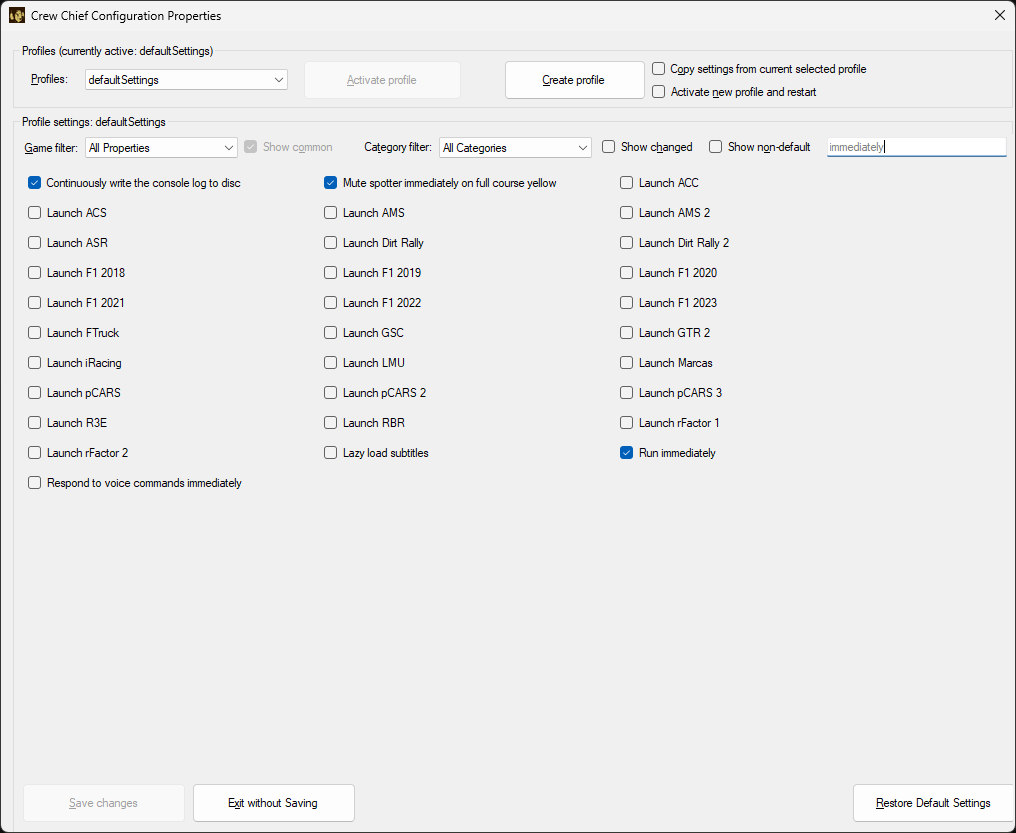
Start Crew Chief as soon as it loads. Head to the Crew Chief settings and search for "immediately". The list of options will quickly narrow down to the one shown in the screenshot. From here, simply tick "Run Immediately".
Because Hot Loads launches Crew Chief when you start your game, this setting ensures Crew Chief initialises itself automatically. Normally you’d need to click the big Start Crew Chief button — but not anymore. Nice one!
Step 2
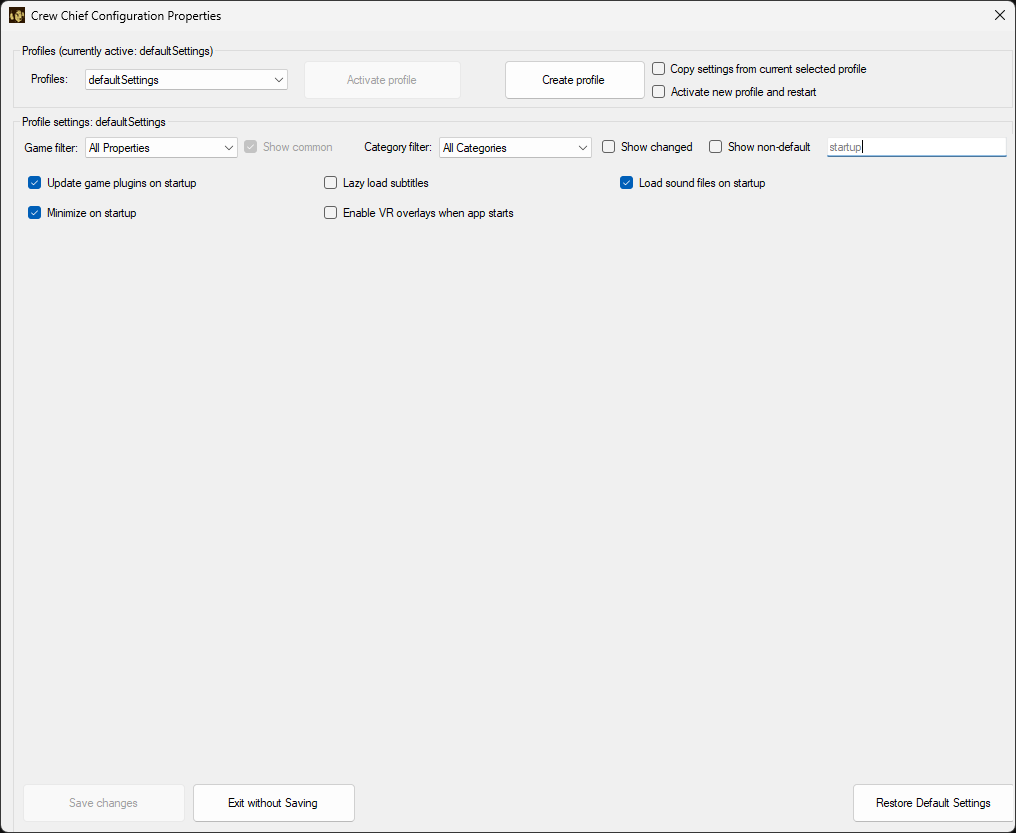
Minimize on startup. You don’t want Crew Chief popping up and covering your game when it starts — it should just run quietly in the background. Search for "startup" in the settings and tick "Minimize on startup" to keep everything distraction-free.
Step 3
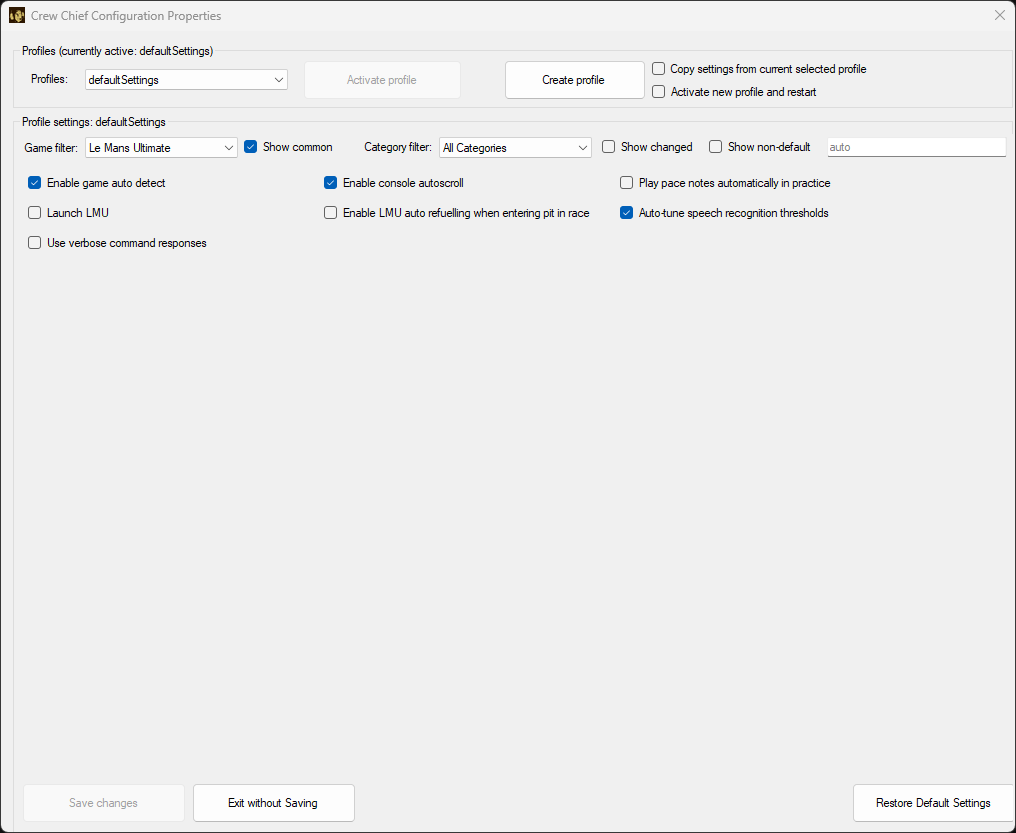
Enable game auto-detect. You no longer need to tell Crew Chief which game you’ve launched. With "auto-detect enabled", it will recognise the game and load the correct files automatically.
Simply search for "auto" in the settings and tick "Enable game auto detect".
Am I missing a guide for my software you think would be useful?